Automating Azure MySQL Flexible Server Backup Long-Term Retention:

The preview solution for protecting Azure Database for MySQL Flexible Servers using Azure Backup is currently paused (https://learn.microsoft.com/en-us/azure/backup/backup-azure-mysql-flexible-server-support-matrixz). Microsoft provides an alternate way using Container-based solution to create an on-demand/scheduled backup of Azure Database for MySQL to an Azure blob container as in the link below,(https://techcommunity.microsoft.com/blog/adformysql/azure-database-for-mysql-extending-long-term-retention-by-using-containers/3065164)
This article provides the steps to automate MySQL database backups using an Ubuntu VM in Azure, storing the backups in Azure Blob Storage, and scheduling the process with cron jobs.
For long-term backup retention, multiple solutions can be employed. One such approach, which I have implemented here, is described below.
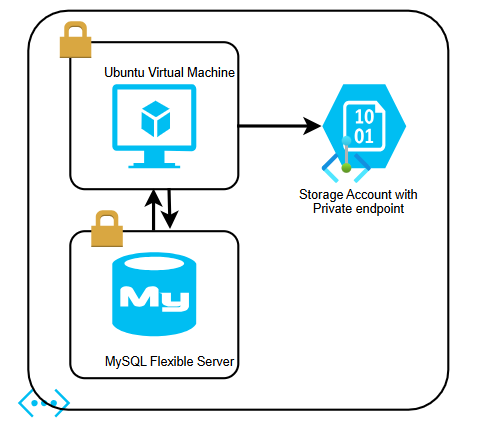
1. Infrastructure Setup
1.1 Create Ubuntu VM
- Deploy a VM (I used Ubuntu OS) in the same Azure subscription and Virtual Network (VNet), where the MySQL Flexible Server is deployed.
- Ensure network connectivity between the VM and the MySQL server. (As the VM and MySQL are in the same VNet, connectivity will be established; however, verify it using telnet and confirm.)
1.2 Create Azure Storage Account
- Create a Storage Account.
- Create a Blob Container for storing backups.
- Create a Private Endpoint for the Storage Account in the same subnet as the Ubuntu VM is running.
2. Identity and Access:
2.1 Enable Managed Identity
- Enable user or system Identity on the Ubuntu VM.
- Assign the following roles to the VM’s managed identity on the Storage account: IAM — Contributor (on the Storage Account); Storage Blob Data Contributor
3. Install MySQL Client on Ubuntu VM
Log in to the VM and install the MySQL client using the following commands:
sudo apt update
sudo apt install mysql-client -y
4. Create Backup Script
Here’s a step-by-step guide to creating a shell script on your VM that:
- Takes a MySQL database backup using
mysqldump - Pushes that backup to an Azure Storage container
Location: /opt/mysql_backup.sh
#!/bin/bash
# Configurable variables
DATE=$(date +%F_%H-%M)
BACKUP_NAME=” “
BACKUP_PATH=”/tmp/$BACKUP_NAME”
STORAGE_ACCOUNT=” “
CONTAINER_NAME=” “
MYSQL_USER=” “
MYSQL_PASSWORD=” “
MYSQL_DB=” ”
# Dump MySQL database (*****.mysql.database.azure.com = provide your Server name)
mysqldump -h *****.mysql.database.azure.com -P 3306 -u $MYSQL_USER -p $MYSQL_DB — single-transaction — set-gtid-purged=OFF — triggers — routines — events > $BACKUP_PATH
# Login to Azure using Managed Identity
az login — identity — client-id X-XXX-XXXX-XXXX-X
# Upload to Azure Blob
az storage blob upload — account-name $STORAGE_ACCOUNT — container-name $CONTAINER_NAME — name $BACKUP_NAME — file $BACKUP_PATH — auth-mode login
Note: Ensure the script has execution permissions:
chmod +x /opt/mysql_backup.sh
5. Schedule Backup with Cron
We can automatically schedule the MySQL backup script to run at regular intervals using the Crontab utility.
Edit Crontab: Crontab -e
Add a Cron-Job as below,
30 02 * * * /opt/mysql_backup.sh >> /var/log/mysql_backup.log 2>&1
This runs the backup daily at 2:30 AM and logs output to /var/log/mysql_backup.log.
Note: We can also use Azure Automation with a Hybrid Runbook Worker to access this VM and run this script instead of a cron job.
6. Cost-Optimization
- To optimize costs, we can configure an Azure Function App/ Automation account to start and stop the VM automatically. This ensures the VM is powered on before the scheduled cron job runs and then shuts down afterward based on the estimated time required to complete the backup.
- Creating Storage lifecycle management rules to move older data to be deleted/archived based on our required backup retention.